
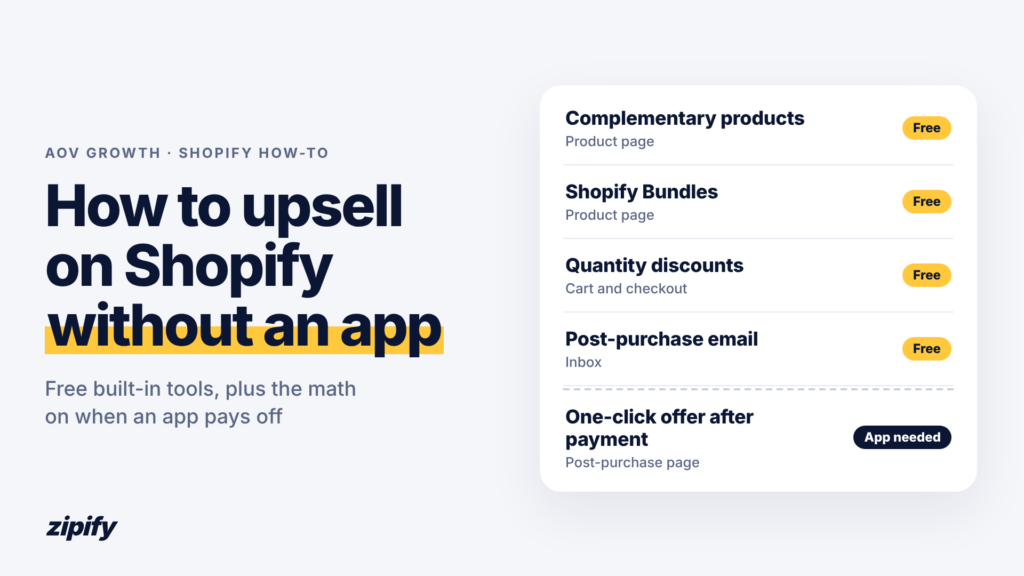
Search “Shopify upsell” and almost every guide ends by recommending an app. If your store ships 50 orders a month, you probably want to know what Shopify already does for free before you add another bill.
Upselling on Shopify without an app means raising order value with the store’s built-in tools: theme recommendation blocks, Shopify’s free Search & Discovery, Bundles and Checkout Blocks apps, discounts and Shopify Messaging (formerly Shopify Email).
Several of those tools, including Search & Discovery and Shopify Bundles, are free apps made by Shopify. I count them as native because Shopify builds them and they cost nothing to install.
Below, I walk through each native tool with its setup steps and limits, then the placement no free tool can cover, and the math for deciding when an app is worth paying for.
Key Takeaways
- Start with Shopify’s own free tools: complementary products, Shopify Bundles, quantity discounts, a free-shipping threshold and a post-purchase upsell email.
- Pick complementary products by hand for your best sellers first, and recheck them monthly, because sold-out picks drop off the page.
- Native Buy X Get Y discounts never add the Y item to the cart, so tell shoppers to add it themselves.
- No free tool can show a one-click offer after payment. That page only exists when an app adds it.
- Before paying for an app, estimate its monthly upsell revenue as orders × take rate × average offer value and compare the result with the bill.
- Keep native setups running after you add an app, since they work alongside it.
What Can You Upsell On Shopify Without An App?
Without an app, you can show complementary products on the product page, sell fixed bundles and multipacks, run quantity deals and set a free-shipping threshold. After the order, you can add a thank-you page banner and send a post-purchase upsell email, all with tools Shopify builds itself.
Scroll sideways for more →
| Native tool | Upsell type | Where shoppers see it | Cost | Main limit |
|---|---|---|---|---|
| Search & Discovery: complementary products | Cross-sell | Product page block (“Pairs well with”) | Free | Picked by hand, up to 10 per product; your theme needs the block |
| Search & Discovery: related products | Alternative or upgrade | Product page section (“You may also like”) | Free | Shopify generates them; you can add picks but can’t edit Shopify’s own |
| Shopify Bundles | Bundle, multipack | Product page, as its own product | Free | Fixed bundles and multipacks only; no mix-and-match |
| Discounts: Buy X Get Y, or amount off with a minimum quantity | Quantity upsell | Cart and checkout | Free | The Y item isn’t added to the cart; each tier needs its own discount |
| Free shipping rate with a minimum order price | Threshold nudge | Cart and checkout | Free | A progress bar depends on your theme |
| Checkout Blocks banner | Cross-sell link | Thank-you page | Free | Links to a product page; the shopper starts a new order |
| Post-purchase upsell email (Marketing > Automations) | Cross-sell, refill | Inbox, after the order | 10,000 emails a month free, then $1 per 1,000 | Not one-click; the shopper comes back and checks out again |
Complementary picks are always manual, while related products are generated by Shopify from purchase history, product descriptions and collections. Here I stick to what the free tools can do. If you’re unsure which offer type is which, start with Upsell vs Cross-Sell vs Downsell. For placement ideas and examples by product category, see How to Upsell on Shopify in 2026.
How Do You Set Up Each No-App Upsell?
Each setup below takes a few minutes in the Shopify admin. The examples follow one hypothetical coffee store: a 12 oz bag of house blend at $18, a 2 lb bag at $38, paper filters at $6, a $36 average order and free shipping from $40.
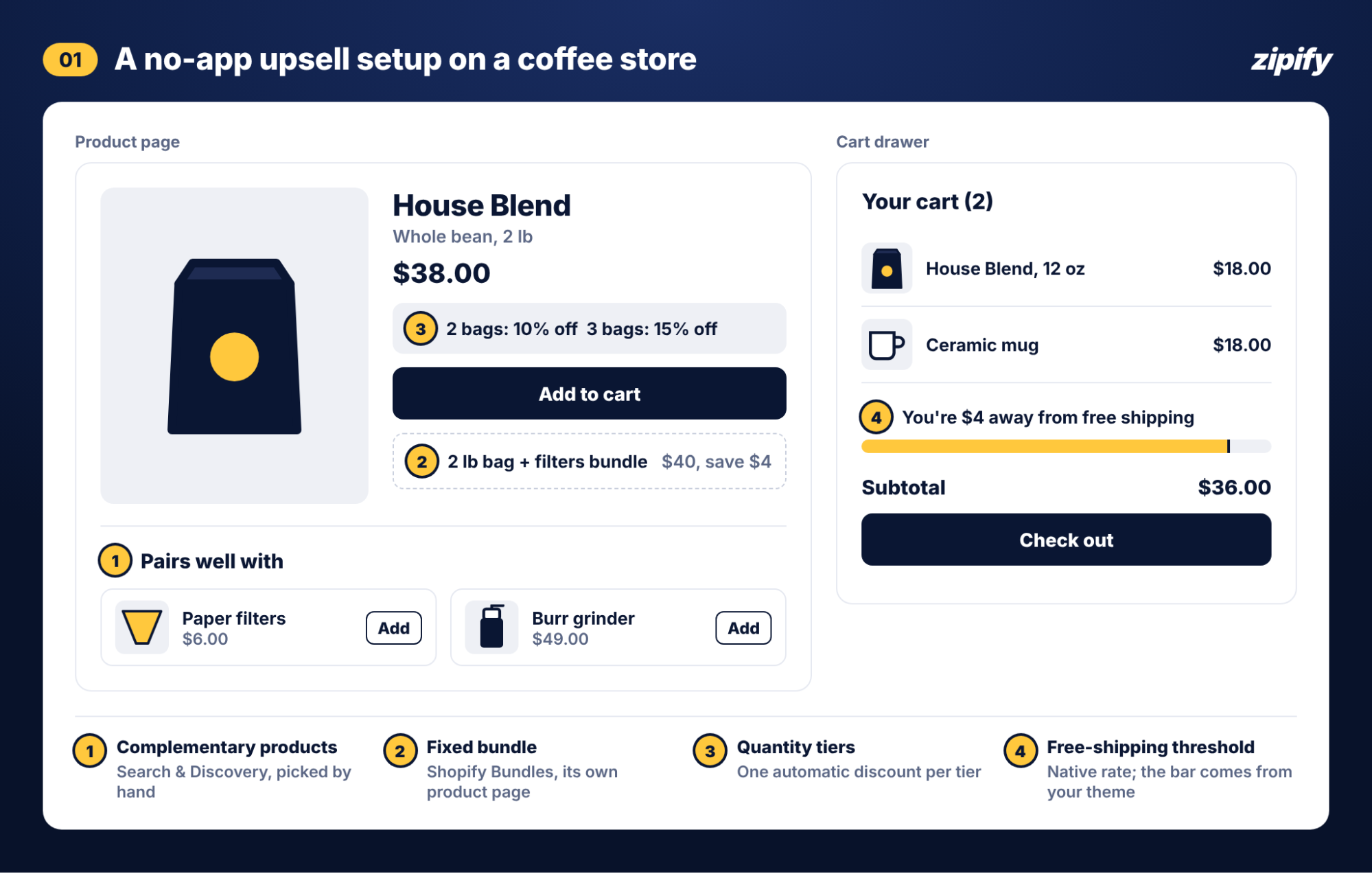
Add complementary products to the product page
- In your Shopify admin, go to Apps > Search & Discovery > Product recommendations and click Add recommendations.
- Pick a product, for example the 2 lb bag, and choose up to 10 complementary products, such as the filters and a grinder.
- Go to Online Store > Themes > Customize and open Products > Default product.
- In the product information section, click Add block > Complementary products, name it “Pairs well with” and save.
Tip
Show 2–3 items near the buy box and turn on the block’s quick add button so shoppers can add filters without leaving the page. Start with your top 10 products by revenue. Shopify also advises picking add-ons priced at or below the main product.
Watch out
A complementary pick only shows when its stock is above 0, even with “continue selling when out of stock” on, and it’s hidden once it’s in the shopper’s cart. Revisit your picks monthly so sold-out items don’t empty the block.
Create a bundle or multipack with Shopify Bundles
- Install Shopify Bundles from the Shopify App Store.
- Choose a fixed bundle (different products sold together) or a multipack (several units of one product).
- Add the components and set the price. The coffee store sells “2 lb bag + filters” for $40 instead of $44, and a 3-bag multipack of the 12 oz blend for $48 instead of $54.
- Publish the bundle to your Online Store.
Tip
Put the saving in the bundle’s title or first line (“Save $4”) so shoppers see it next to the single-item price.
Watch out
Shoppers can’t build their own bundle, and each bundle is a separate product page with no add-on prompt next to the main item. Bundles also can’t be sold with selling plans such as subscriptions, which matters if you sell coffee on subscription.
Set up a quantity deal with native discounts
- Go to Discounts > Create discount > Amount off products and choose Automatic discount.
- Apply it to the coffee collection with 10% off and a minimum quantity of 2 items.
- Create a second automatic discount for 15% off at 3 items. Leave the combination settings off on both, then test a 3-bag cart to confirm only one tier applies.
- For a gift-style deal, choose Buy X get Y instead: buy a 2 lb bag, get filters at 50% off.
Tip
Spell out the tiers on the product page (“2 bags: 10% off. 3 bags: 15% off.”), because native discounts don’t display anything before the cart.
Watch out
Native Buy X Get Y discounts the filters but never adds them to the cart, as Shopify staff confirm. Say it plainly on the page (“Add filters to your cart and they’re half price”). This is where many native setups lose the sale.
Use a free-shipping threshold as a cart upsell
- Go to Settings > Shipping and delivery and open your shipping profile.
- In your shipping zone, click Add rate, set the price to $0 and add a condition based on order price, with a minimum of $40.
- Keep your paid rate for orders under $40 and save.
Tip
Set the threshold a little above your current average order. At a $36 average, a $40 threshold means one bag of filters gets an average cart over the line.
Watch out
The “$4 away from free shipping” bar comes from your theme. Not every theme includes one (Shopify’s Dawn doesn’t), so check your theme’s cart settings before you add code or an app.
Add a thank-you page banner with Checkout Blocks
- Install Shopify’s free Checkout Blocks app.
- Create a content block with an image of the grinder and a button that links to its product page.
- Go to Settings > Checkout, click Customize, open the Thank you page, add the block and save.
Tip
Feature the item buyers need next, like a grinder for whole-bean buyers.
Watch out
The button opens a product page, so the shopper starts a new order and a new checkout. Thank-you page extensions can’t change the order because it’s already complete.
Send a post-purchase upsell email
- Go to Marketing > Automations and click Create automation.
- Choose the Post-purchase upsell email template, or First purchase upsell to reach first-time buyers only.
- Build the email around the next logical item. For coffee, that’s often a reorder: “Ready for another bag?”
- Set the wait time so the email lands before a typical customer runs out. Check how many days usually pass between first and second orders in your own order history.
- Turn the automation on.
Tip
For a longer sequence, use the 4-email post-purchase drip.
Watch out
Marketing automations only reach customers who agreed to receive marketing email, so this won’t reach every buyer.
What Changed In Checkout For Shopify Plus Stores?
- Shopify blocked edits to Scripts on April 15, 2026 and stopped all Scripts from running on June 30, 2026 (Shopify changelog). Script-based checkout offers no longer run.
- Offers inside checkout now come from apps built with checkout UI extensions. Only Plus stores can add them to the main checkout steps; other plans can add extensions to the thank-you and order status pages only (Shopify.dev).
- Simple quantity tiers that used to run in a Script can be rebuilt with the native discounts above.
What Can’t You Do Without An App?
Native tools can’t add an offer to an order after payment or inside checkout. Native testing covers broad store changes through Rollouts, and nothing native picks an offer for each shopper automatically.
Scroll sideways for more →
| What you want | Native? | Why |
|---|---|---|
| One-click post-purchase upsell, before the thank-you page | No | The post-purchase page only exists when an installed app adds it, and only one app can run it at a time |
| Downsell after a declined offer | No | It needs a post-purchase funnel |
| In-checkout offer | Plus + app | Checkout UI extensions in the main checkout steps are Plus-only and come from apps |
| Thank-you page offer | Partly | Checkout Blocks can add a banner that links to a product; an offer shoppers accept on the page comes from an app |
| Cart offers that follow cart contents | Partly | It depends on your theme, and complementary picks are set by hand for each product |
| Gift or Y item added to the cart automatically | No | Native Buy X Get Y only discounts the item |
| Split tests and revenue per offer | Partly | Rollouts experiments compare theme, checkout, discount and catalog changes with your live store (Grow plan and up), and Search & Discovery reports show click and purchase rates for recommendations; neither tests an offer after payment or reports revenue per offer |
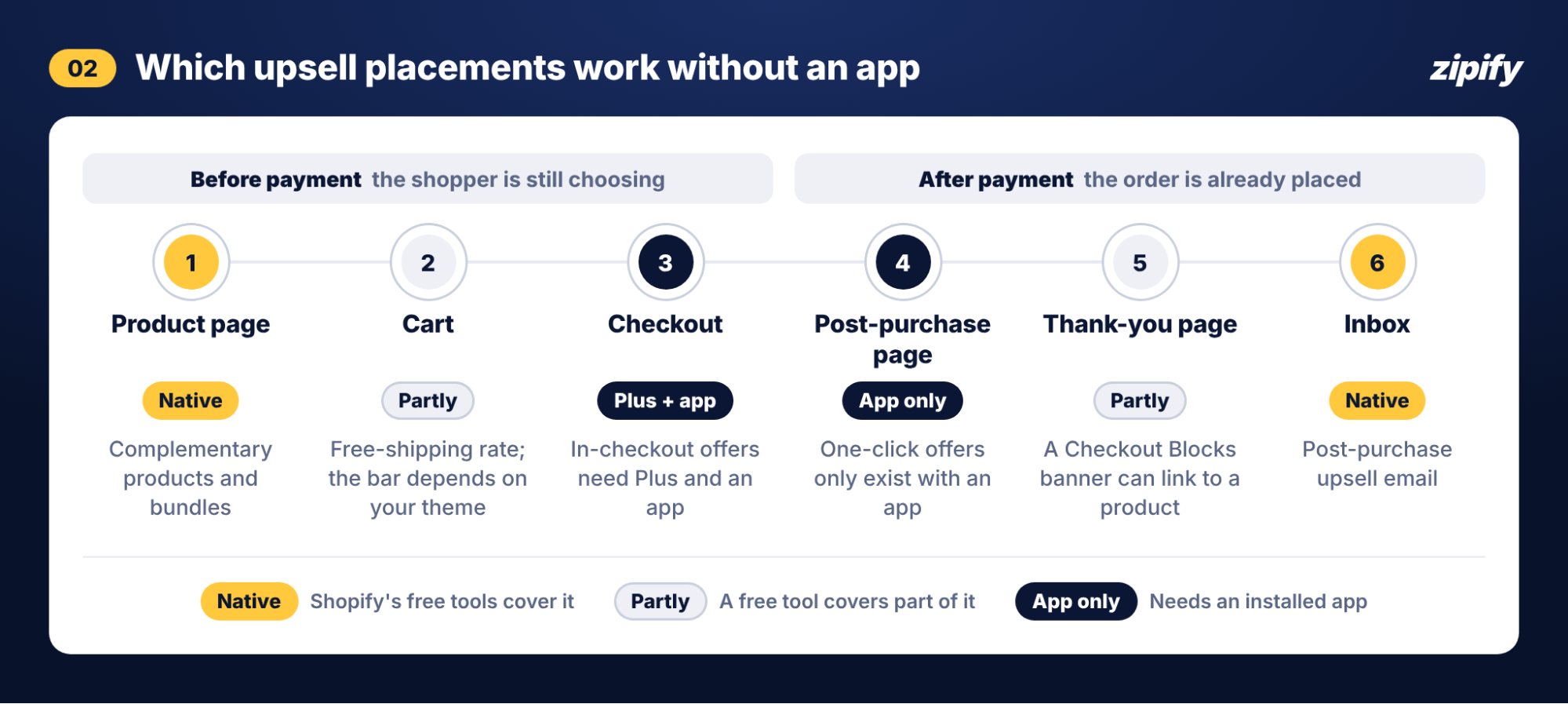
Across the 15,000+ stores running OneClickUpsell (OCU), post-purchase offers bring in 62.1% of upsell revenue, and thank-you page offers add another 4% (Zipify internal data, 2026). Together that’s about two-thirds of upsell revenue, and native tools can’t show a shoppable offer in either placement.
Use the table as a checklist: each row marked No or Partly is an offer your store can’t fully show yet.
When Does An Upsell App Pay Off?
An upsell app pays off when the upsell revenue it adds each month is bigger than its bill, after you count the hours its automatic offers save you. You can estimate that revenue from your own numbers:
Monthly upsell revenue = monthly orders × post-purchase take rate × average offer value
Compare the result with the app’s monthly bill. For a stricter check, multiply the revenue by your gross margin first, because upsell revenue isn’t profit.
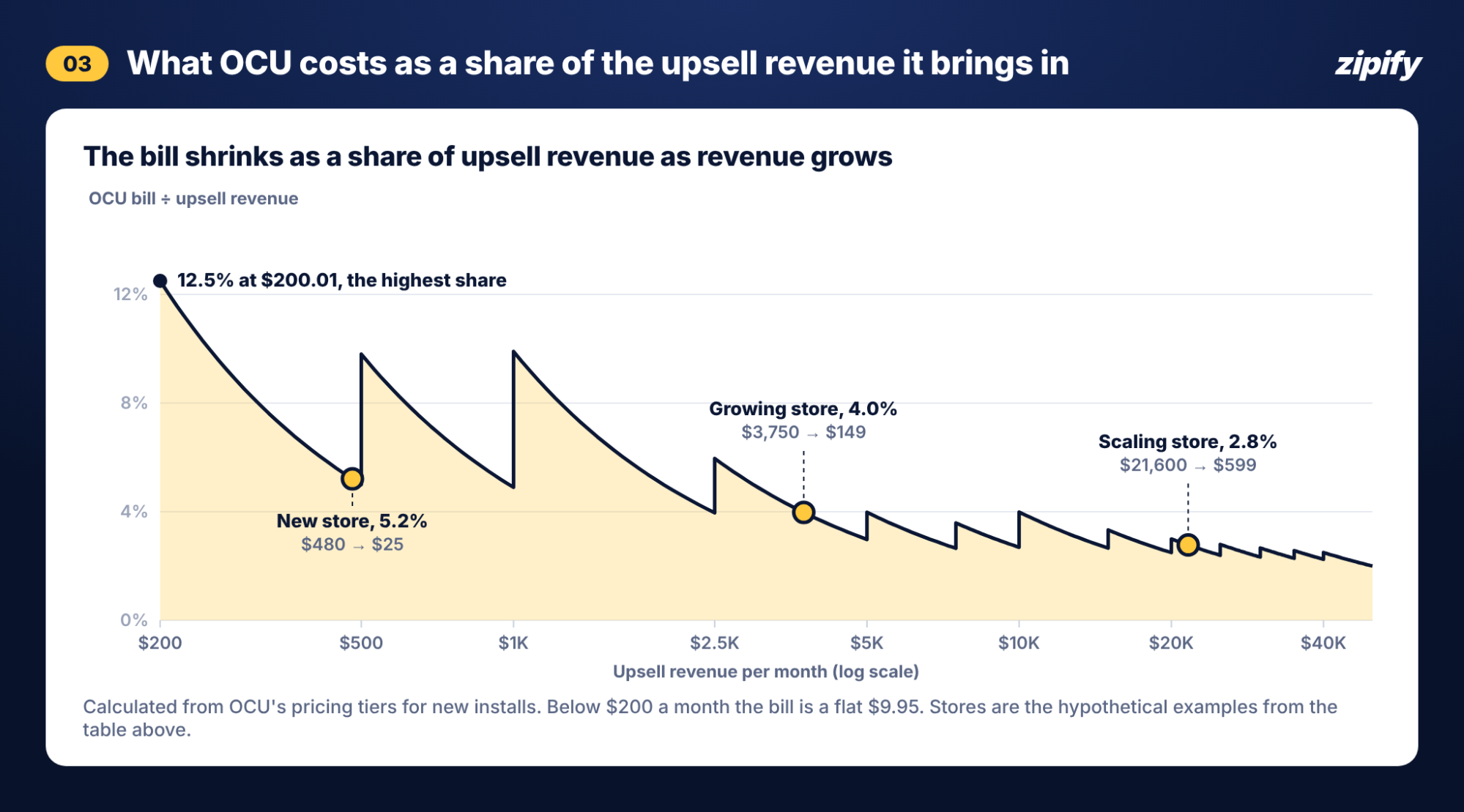
I checked OCU’s pricing page on November 13, 2026. The worked examples below are hypothetical, priced on OCU’s revenue-based tiers:
Scroll sideways for more →
| Store (hypothetical) | Orders / month | Post-purchase take rate | Average offer | Upsell revenue / month | OCU price / month | Return |
|---|---|---|---|---|---|---|
| Very small store | 50 | 8% | $20 | $80 | $9.95 | 8x |
| New store | 300 | 8% | $20 | $480 | $25 | 19x |
| Growing store | 1,500 | 10% | $25 | $3,750 | $149 | 25x |
| Scaling store | 6,000 | 12% | $30 | $21,600 | $599 | 36x |
Prices: OCU pricing tiers, checked November 13, 2026. Stores are hypothetical.
- Take rates are placeholders, set above the roughly 4% that underoptimized post-purchase offers see (Zipify, 2026), for a store that tests and refines its offers.
- Average offers are placeholders too. Plug in the price of the add-on you’d offer, such as filters or a second bag.
- Margin: at a 50% gross margin, the new store still keeps $240 a month in gross profit against a $25 bill.
- Break-even: a month with less than $200 in upsell revenue bills at $9.95, so one accepted $20 offer covers it.
Pricing model matters as much as price. Apps billed on order volume charge for every store order, whether or not an offer converts. Revenue-based billing follows what the app brings in, so a slow month costs less. On OCU’s tiers, once upsell revenue passes $200 a month, the bill never exceeds 12.5% of that revenue, and it drops to 2.5% or less once upsell revenue passes $40,000 (my calculation from the tier table). To compare billing models across apps, see Zipify’s roundup of the cheapest Shopify upsell apps.
More placements bring in more. Zipify’s audit of $143M in tracked upsell revenue found that stores running offers in three or more placements earn 3.6x the upsell revenue of stores running post-purchase offers only.
Count your hours too. Native setups need upkeep, from refreshing complementary picks to updating discount tiers. If an app’s automatic offers would save you a few hours of that each month, add the value of that time to the app’s side of the comparison.
OCU’s 30-day free trial lets you run this math on your own orders before the first bill. See how OCU works.
Run this math on your own orders with a 30-day free trial
Should You Stay Native Or Add An Upsell App?
Stay native while your catalog is small and you’re still testing whether shoppers take add-ons. Add an app when you want offers after payment or inside checkout on Plus, or when picking every pairing by hand stops scaling.
Scroll sideways for more →
| Your situation | Start with |
|---|---|
| Small catalog and low order volume | Native: complementary products and a free-shipping threshold |
| Consumables or refills | A native post-purchase email now, then one-click post-purchase offers as orders grow |
| You want offers after payment | An app, because the post-purchase page doesn’t exist without one |
| Shopify Plus store that relied on Scripts | An app with in-checkout upsells |
| Large catalog where manual picks don’t scale | An app with AI or rule-based offers |
| You want to test offer prices or copy | An app with split testing at each placement |
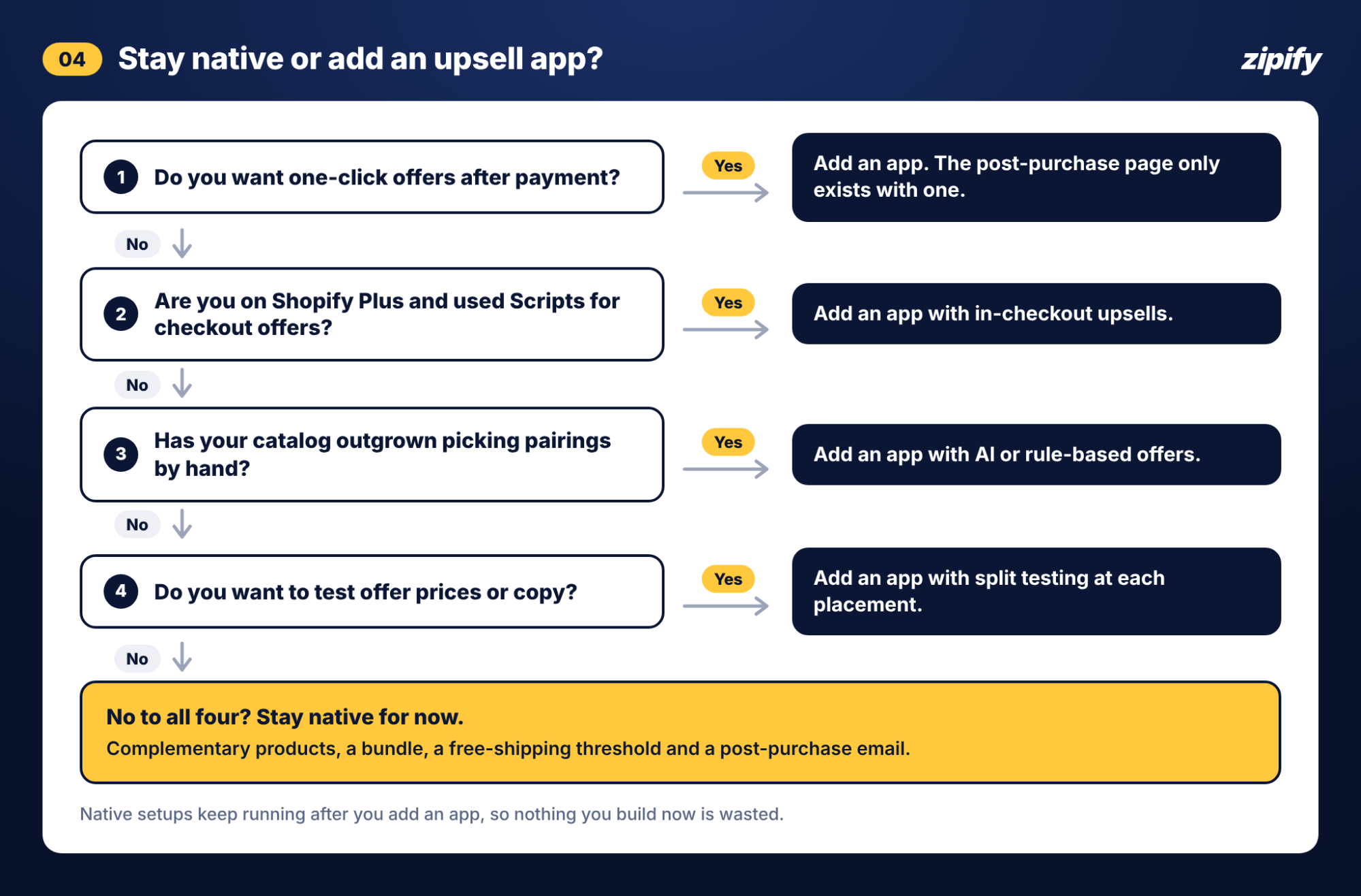
Testing is often where an app earns its keep, because native tools can’t split-test an offer. When Cheech & Chong moved to OCU with the Zipify Plus managed team, they split-tested discount depth: a 15% offer beat a 20% one by 7.4% in conversion rate while protecting margin.
Native tools are a fine first step, and they keep working alongside an app later. Nothing you set up natively is wasted.
Frequently Asked Questions
Can you upsell on Shopify for free?
Yes. Complementary products, Shopify Bundles, native discounts, Checkout Blocks and the post-purchase email automation cost nothing extra. Only emails beyond Shopify Messaging’s monthly free allowance are billed.
Does Shopify have a built-in upsell feature?
Shopify has no dedicated upsell feature. You build upsells by combining recommendation blocks, bundles and discounts.
Can you do post-purchase upsells without an app?
No. The post-purchase page only appears when an installed app adds it, so a one-click offer after payment always needs an app. A post-purchase email is the closest free option.
Do upsell apps slow down your store?
They can. An app that loads scripts on your storefront adds weight to those pages, while post-purchase and checkout offers built as Shopify extensions load in Shopify’s own checkout, not on your product pages. Check the App Store listing for the Built for Shopify badge: Shopify awards it to apps that meet its performance and reliability standards, and OCU earned it in 2025.
How much does a Shopify upsell app cost?
Prices run from free plans to about $1,000 a month for high-volume stores. Most apps bill in one of two ways: a fee based on your store’s orders, or a fee based on the upsell revenue the app brings in. OCU uses the second model and costs $9.95 to $999 a month, depending on the upsell revenue it generates.
The Bottom Line
Start with Shopify’s free tools and measure what they add over a month or two. You can upsell on Shopify without an app for as long as complementary products, bundles, quantity deals and a post-purchase email cover the offers you want. The 10-question AOV checklist helps you pick where to begin. Bring in an app when you want the offers native tools can’t show, starting with one-click offers after payment. Your complementary products, bundles and discounts keep running next to it.