
Your best chance to sell a subscription may be right after checkout.
Every day, customers see subscribe-and-save options sitting on the product pages, and they choose to buy the one-time version anyway. They like your product enough to pay full price for it, but they pass on the recurring commitment because it feels bigger than buying once.
Until now, trying to win a second purchase meant chasing them with emails/SMS they don’t read or retargeting ads that cut into margin.
One Click Upsell just released two new ways to sell subscriptions right on your post-purchase offer page:
- Turn a one-time purchase into a subscription.
- Upgrade an existing subscriber to a different plan.
Here’s how both work, and how to set them up this week.
Why Selling Subscriptions Can Be Easier After Checkout
Keep the subscribe-and-save option on your product page — plenty of customers still convert right there. These two features are for the shoppers the product page don’t convert:
- Buyers who chose the one-time purchase
- Subscribers who already have a plan and just reordered
For them, the best moment is right after checkout, because the purchase decision has already been made, the payment’s in, and confidence is at its highest.
That’s where post-purchase upsells already do their best work — and now you can leverage that same moment to sell subscriptions. It’s the automatic version of the subscription-first front end offer we covered earlier this year.
Turn a One-Time Buyer Into a Subscriber, Automatically
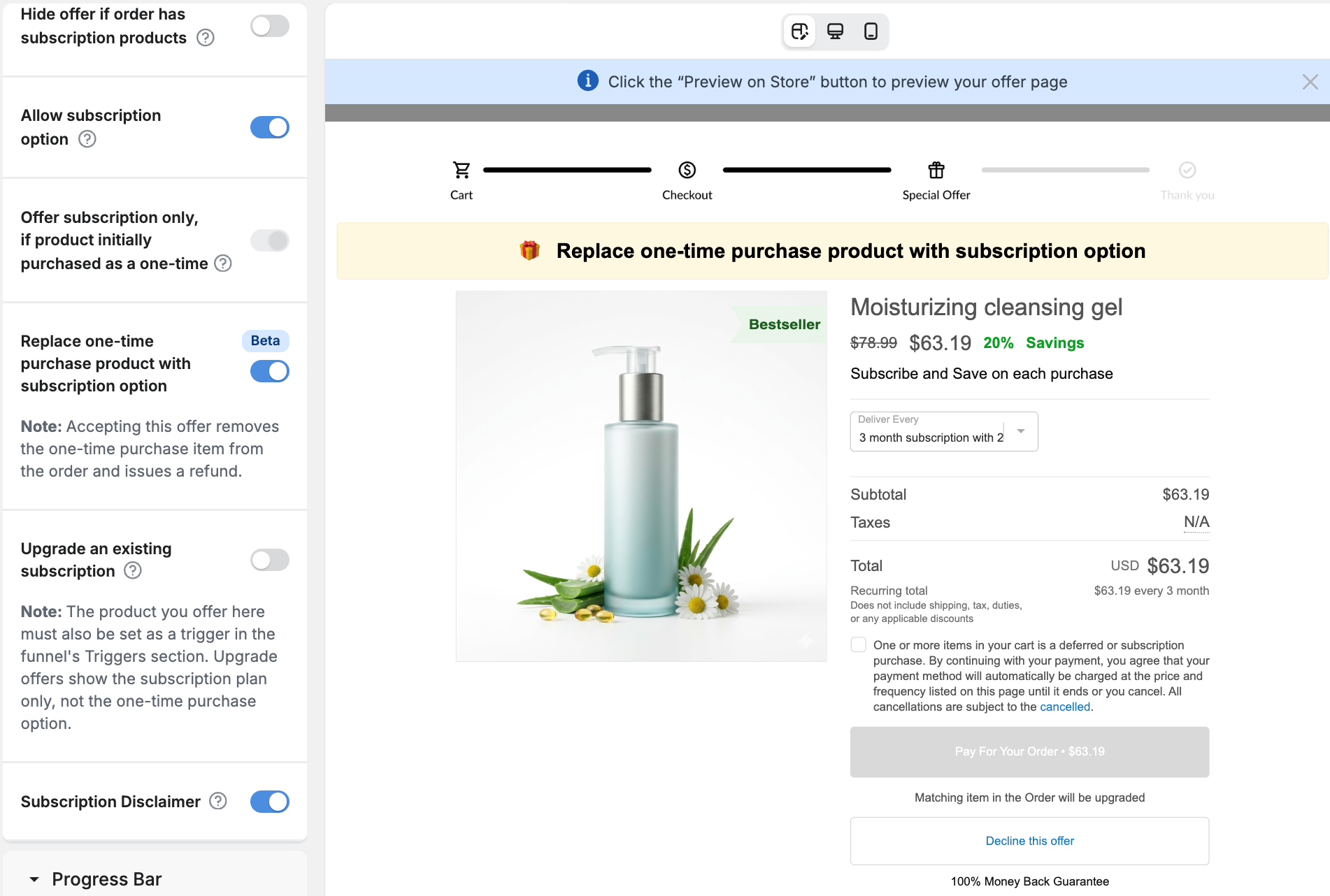
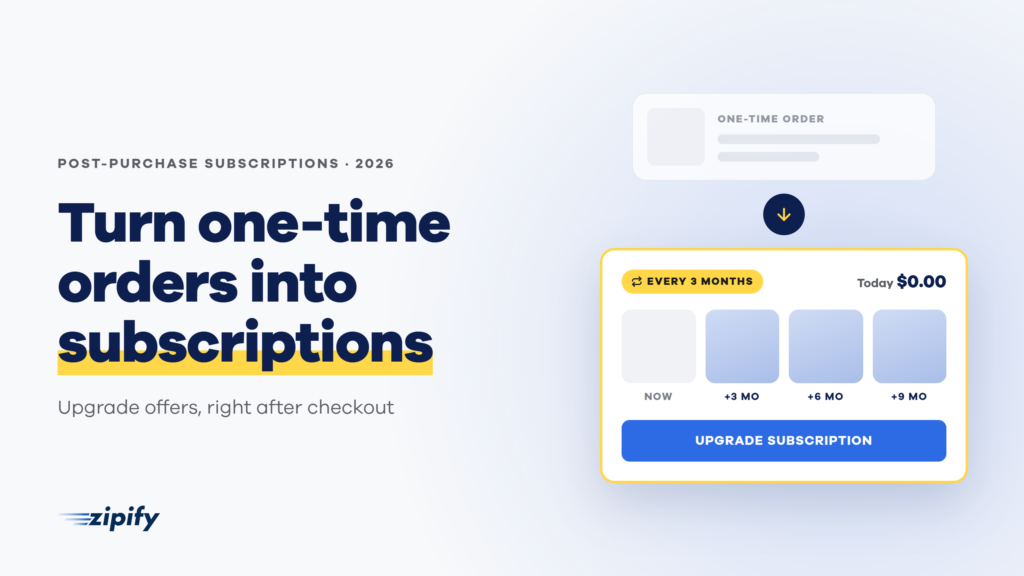
Your post-purchase offer can now show one-time buyers the subscription version of the product they just bought — it takes two toggles in OCU’s upsell editor.
When they accept, OCU swaps the order automatically: the subscription is processed, and the one-time purchase is refunded in full, taxes included.
- No duplicate line items
- No manual refunds
- And if the offer payment fails, their original order is untouched.
It works on Same Product as Bought and Regular Single Post-Purchase offers, for any product with both one-time and subscription options set up in your subscription app.
How to set it up inside OCU:
- In OneClickUpsell, open a Post-Purchase offer (either: Same Product as Bought or Regular Single)
- In Display Offer settings, toggle on “Allow subscription option”
- Toggle on “Replace One-time purchase product with Subscription option”
- Update your offer headline and description to match
Upgrade a Subscriber’s Plan Without Charging Them at Checkout
This one’s currently for Recharge merchants only. (Not using Recharge? We’re integrating with other subscription apps next. Click here and tell our support team what app you use.)
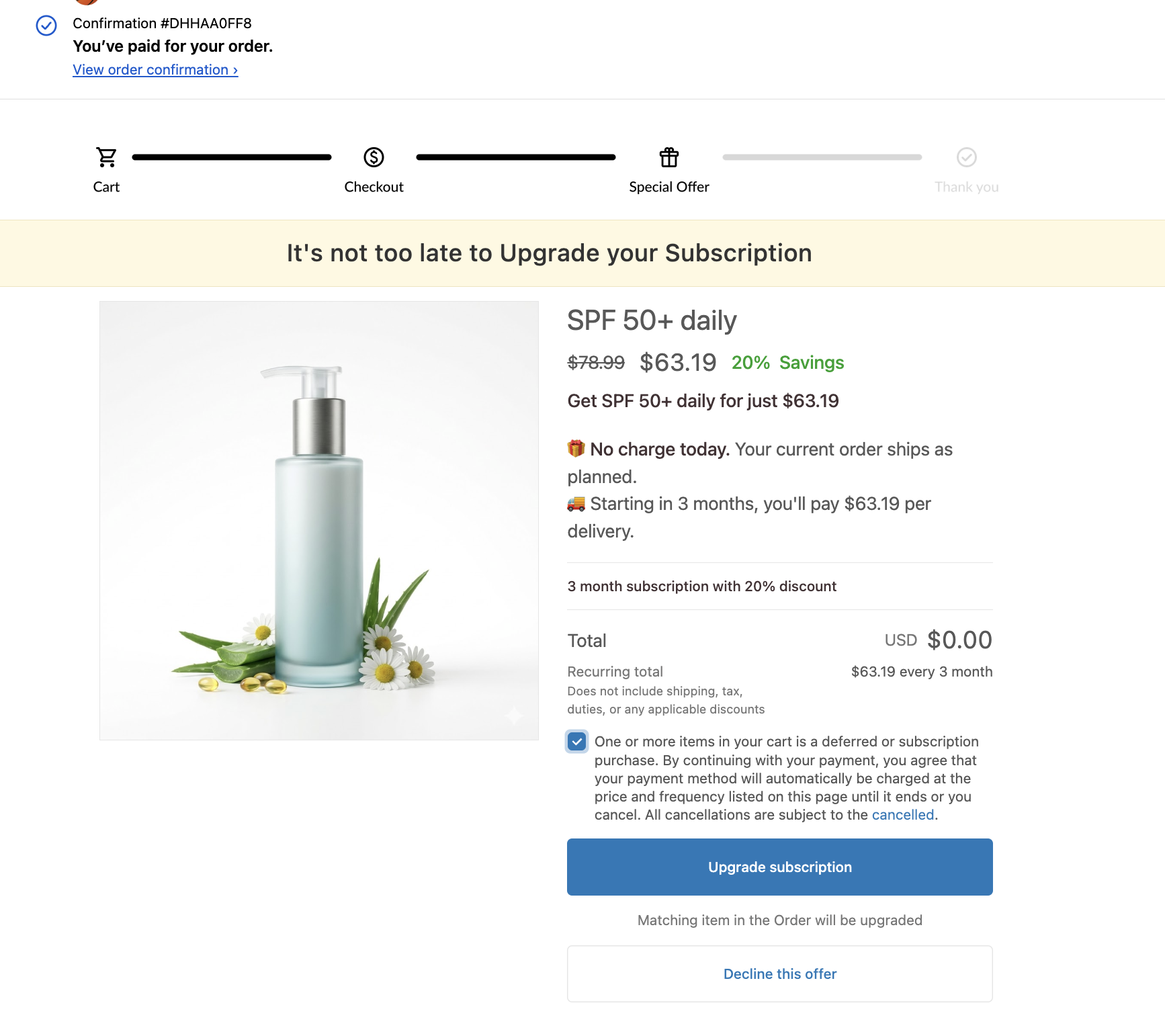
You can switch on “Upgrade an existing subscription” and use your post-purchase offer to move a current subscriber to a better plan — like from monthly to annual or starter tier to pro. Here’s how it works:
- $0 charge at checkout: the plan change happens in Recharge at their next billing cycle.
- No irrelevant offers: if a customer’s plan doesn’t match any path, the offer is skipped entirely.
- No broken subscriptions: if the change doesn’t sync, their original plan is untouched and checkout finishes normally.
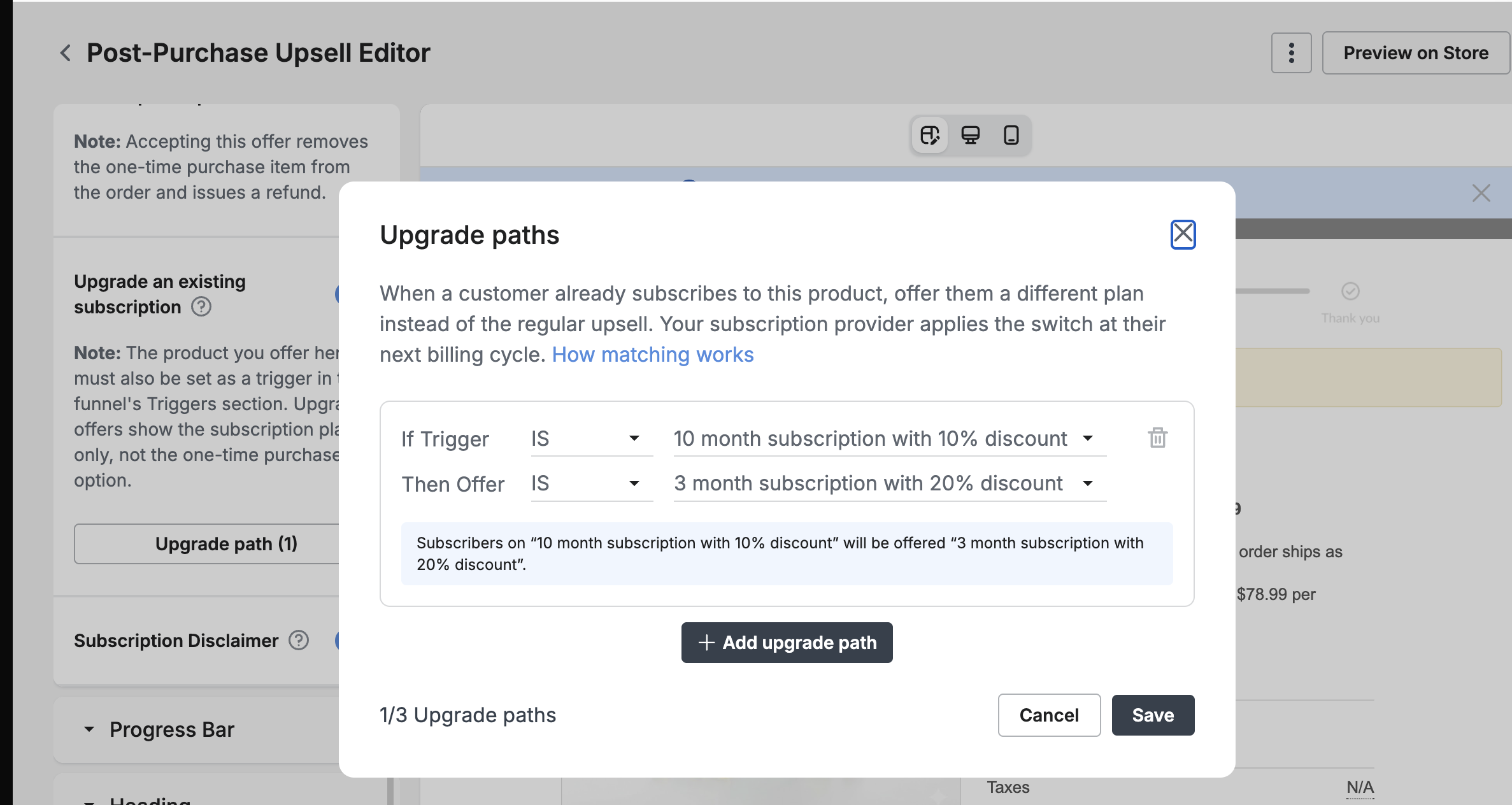
You can set up to 3 upgrade paths for each offer using a simple rule: if they’re on this plan, offer that plan.
The CTA button even rewrites itself and becomes “Upgrade subscription”. Once accepted, their order shows a $0 line item confirming the new plan.
How to set it up inside OCU:
- Paste your Recharge API token into OCU’s Integration settings
- Open a Regular Single Post-Purchase offer with “Allow subscription option” turned on
- Toggle on “Upgrade an existing subscription”
- Click “Upgrade path” and set your rule: If Trigger is [current plan], Then Offer [upgrade plan]
- Add up to 3 paths, then Save.
Run a test order before going live, and you’ll see exactly what your customers see.
Before You Flip It On
Four things that separate a subscription upsell that converts from one that gets declined:
☐ Set the subscriber discount in your subscription app. OCU can’t add an extra discount to subscription items. You have to set price in Recharge (or your subscription app), not in OCU.
☐ Confirm the product has a subscription option. To swap a one-time purchase for a subscription, first the product needs a subscription option set up in your subscription app — OCU can’t offer one that doesn’t exist.
☐ Expect $0 revenue in OCU’s stats for plan upgrades. Nothing is charged on the post-purchase page — the upgrade revenue shows up in Recharge. Views and conversion rate track normally, so nothing’s broken.
☐ Rewrite your offer headline and description. Customers need to know their order is being updated, not added to — OCU reminds you when you turn either setting on.
Make Every Order a Subscription Opportunity
The customer who skipped subscribe-and-save didn’t reject your product, they bought it. They just rejected the commitment of recurring charges.
Right after checkout, the yes gets easier: Shoppers are at peak confidence in your product, and the offer isn’t asking them for more money:
- One-time only buyers get money back: their purchase is refunded and replaced with the subscription at the discount you set.
- Existing subscribers pay nothing for the product at checkout and walk away on a better subscription plan.
Both subscription features are live now. If you’re already running post-purchase offers in OCU, you can toggle them on today.