
October brought AI-powered offers to two more places in your upsell funnel. You also have new ways to target first-time and returning customers, more options to display pricing and more flexible badges.
Check out what’s new 👇
OneClickUpsell
Thank You Page Offers Get Multiple Products & AI
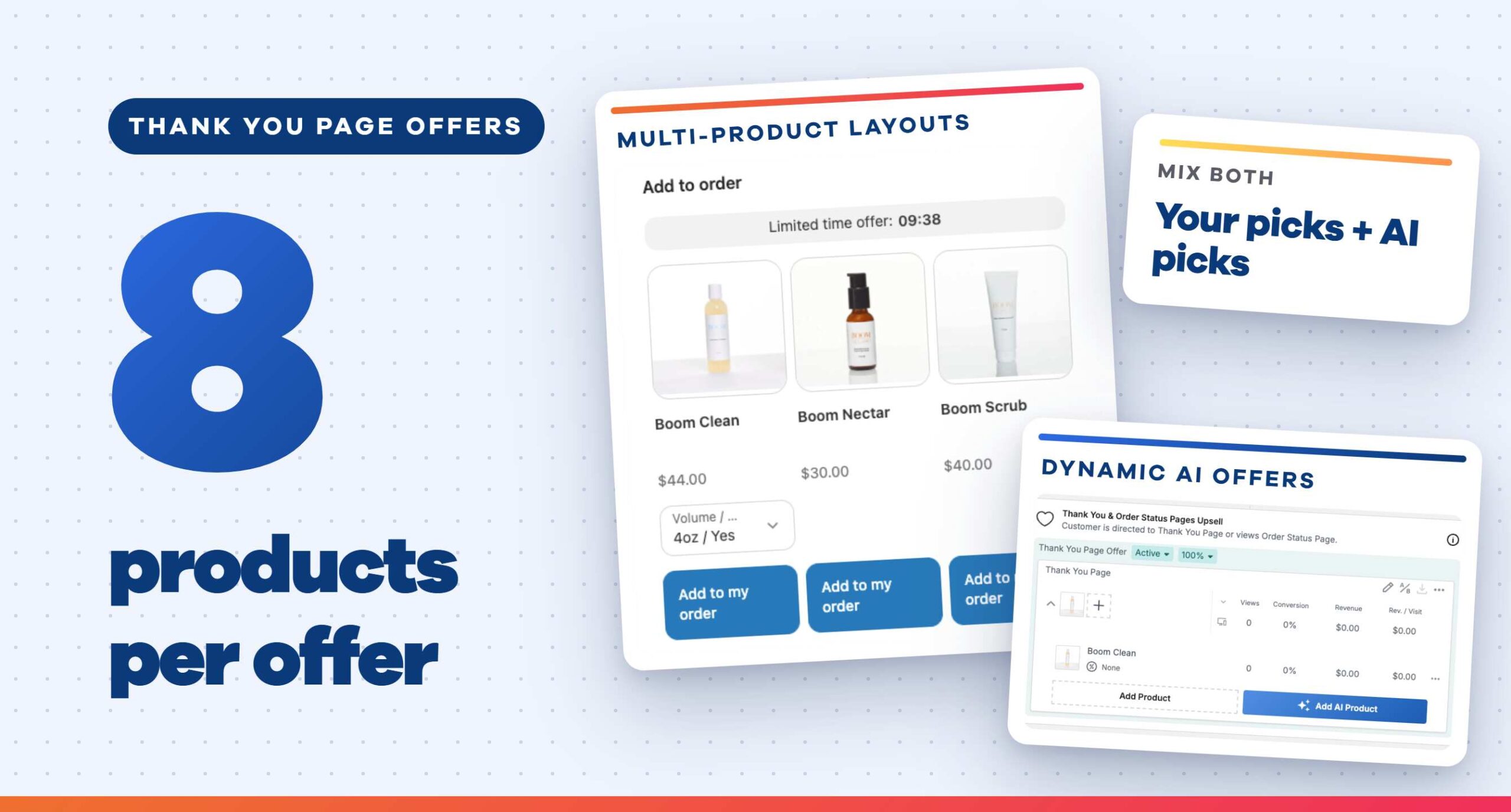
Until now, a Thank You page offer could only show one product. Now you can add up to 8 products to a single offer, giving customers more choices after checkout.
You can also let AI do the picking. Dynamic AI offers match products to each order automatically. And on Thank You page offers only, you can mix both approaches in one offer. For example, you can add a best-seller you always want to feature and let AI fill in the rest.
New layouts are available to show off multi-product offers, and we made a few updates to button and timer settings along the way.
Big Upgrades to In-Checkout Upsells
Let AI Build Your In-Checkout Upsells
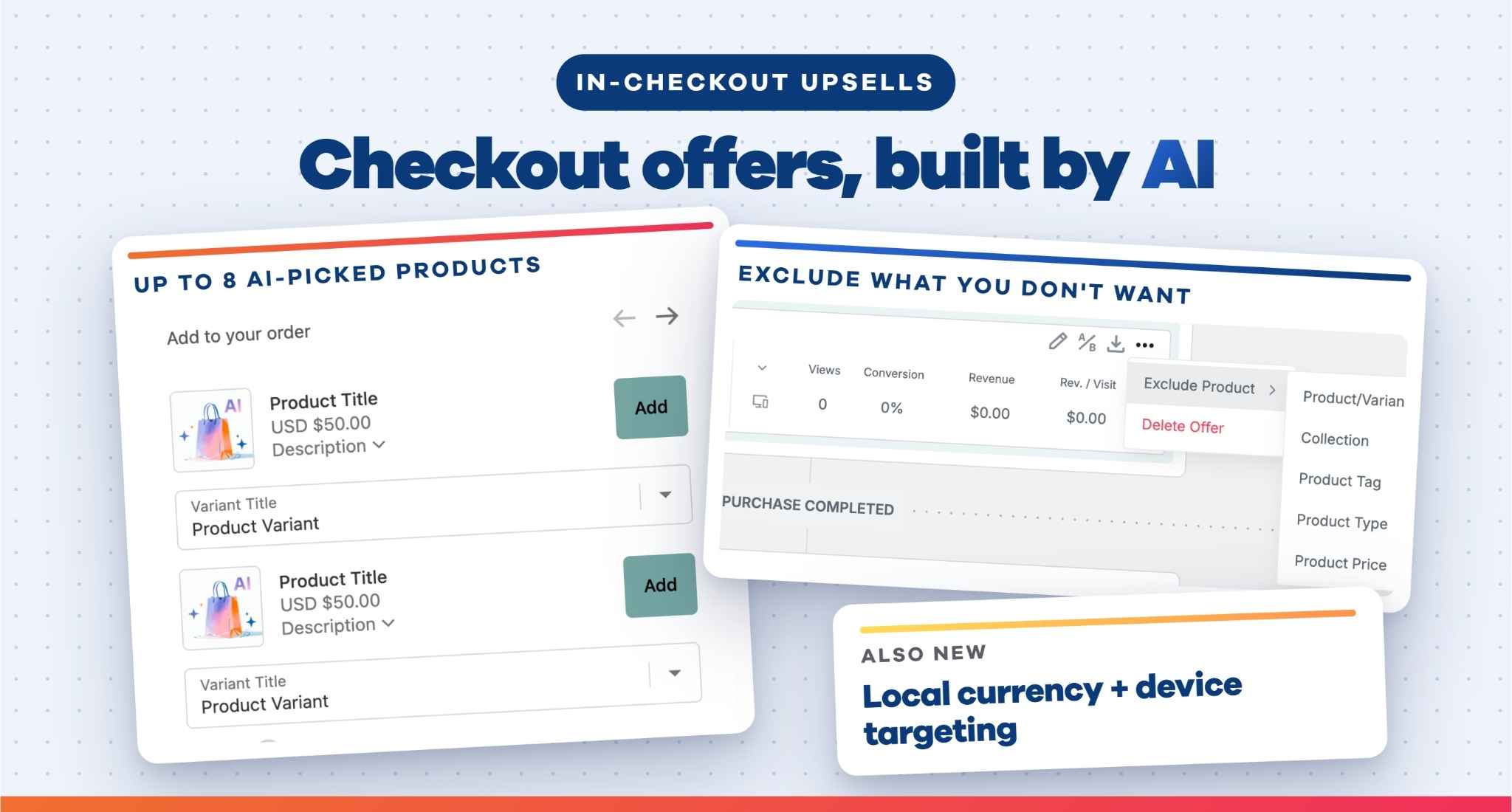
This one is for Shopify Plus merchants: now you can build your In-Checkout upsells with AI. Click Generate AI Offer on your funnel screen, and AI automatically picks the products to show at checkout. You can still build offers yourself with + Add Upsell Offer, and both options work side by side.
Choose between Recommended Products or Bestselling Products, and show anywhere from 1 to 8 products. If there are items you want to keep out, you can exclude them by product, collection, product type, tag, or price.
You edit AI offers in the same editor you already use, with one discount, quantity, and description setting that applies to every product. If you’ve used AI offers in the Cart Drawer, you already know how this works.
Each offer tracks views, conversion, revenue, and revenue per visit. Click View products to see how each recommended product is performing.
More Control Over Your In-Checkout Offers
On multi-currency stores, In-Checkout offer prices now show in the customer’s local currency. International shoppers see the same currency they’ve been shopping in all along, so there’s no guessing or converting at the last step. That makes your offers clearer, more trustworthy, and easier to say yes to.
You can also choose where your upsell appears on each device. With the new Visible on setting, you can show an upsell on all devices, desktop only, or mobile only. That way, you can keep the placement that works on desktop and move the upsell somewhere more visible on mobile.
Target New & Returning Customers
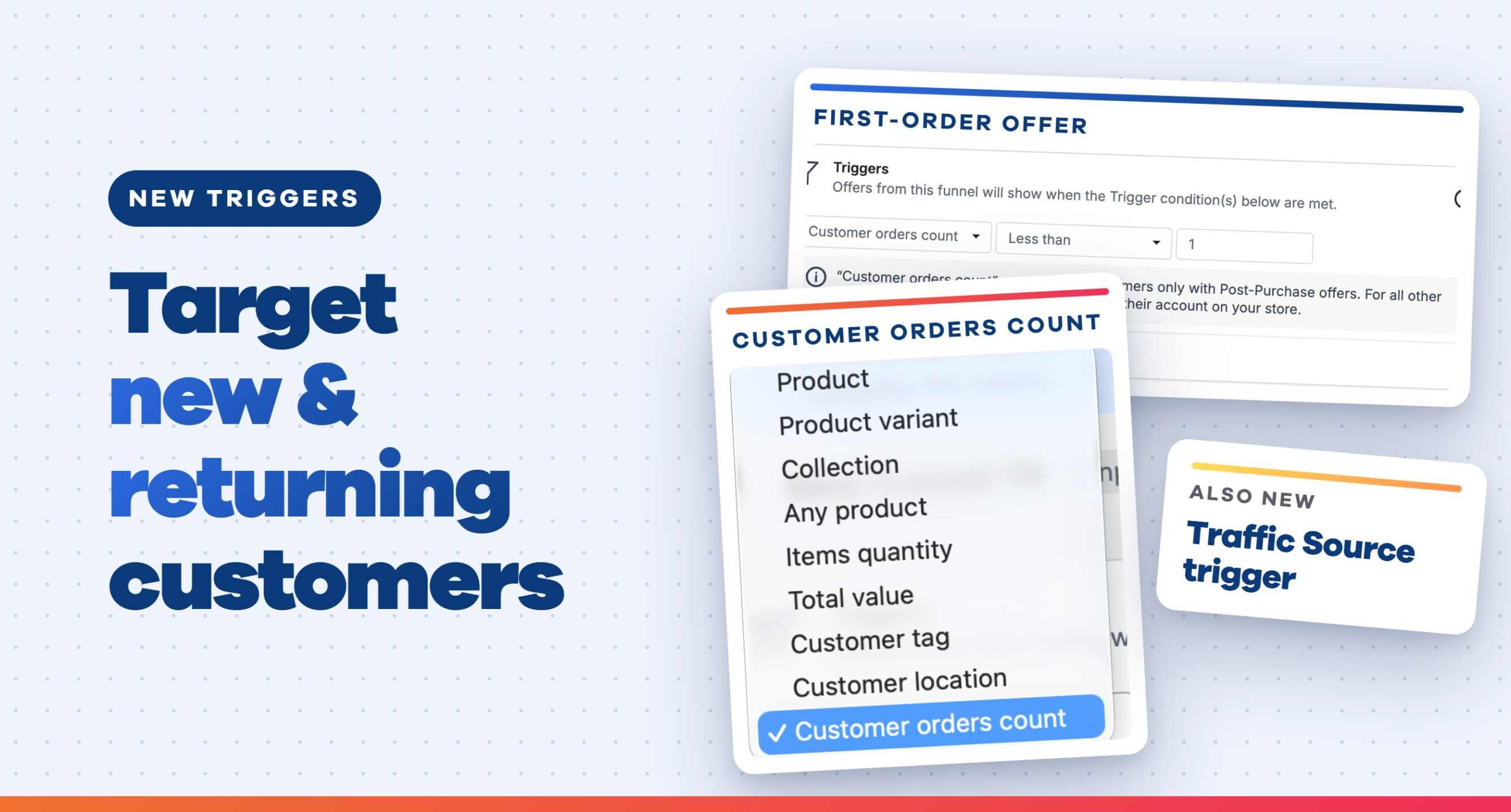
The new Customer Orders Count trigger lets you show offers based on how many times a customer has ordered from you. You can give first-time buyers a welcome deal or reward repeat customers with a loyalty offer. It works for all customers on Post-Purchase offers, and for logged-in customers on all other offer types.
You can also combine it with other triggers you already use. For example, pair it with a Collection condition to show a first-order offer only on select products.
We also added a second new trigger. With Traffic Source, you can show or hide offers based on where shoppers came from, using UTM parameters or the referring domain. You can show a dedicated upsell to an influencer’s audience or keep discount offers away from coupon-site traffic. It’s especially useful for your BFCM campaigns.
More Upgrades to Your Offers
Pre-Purchase Price Display
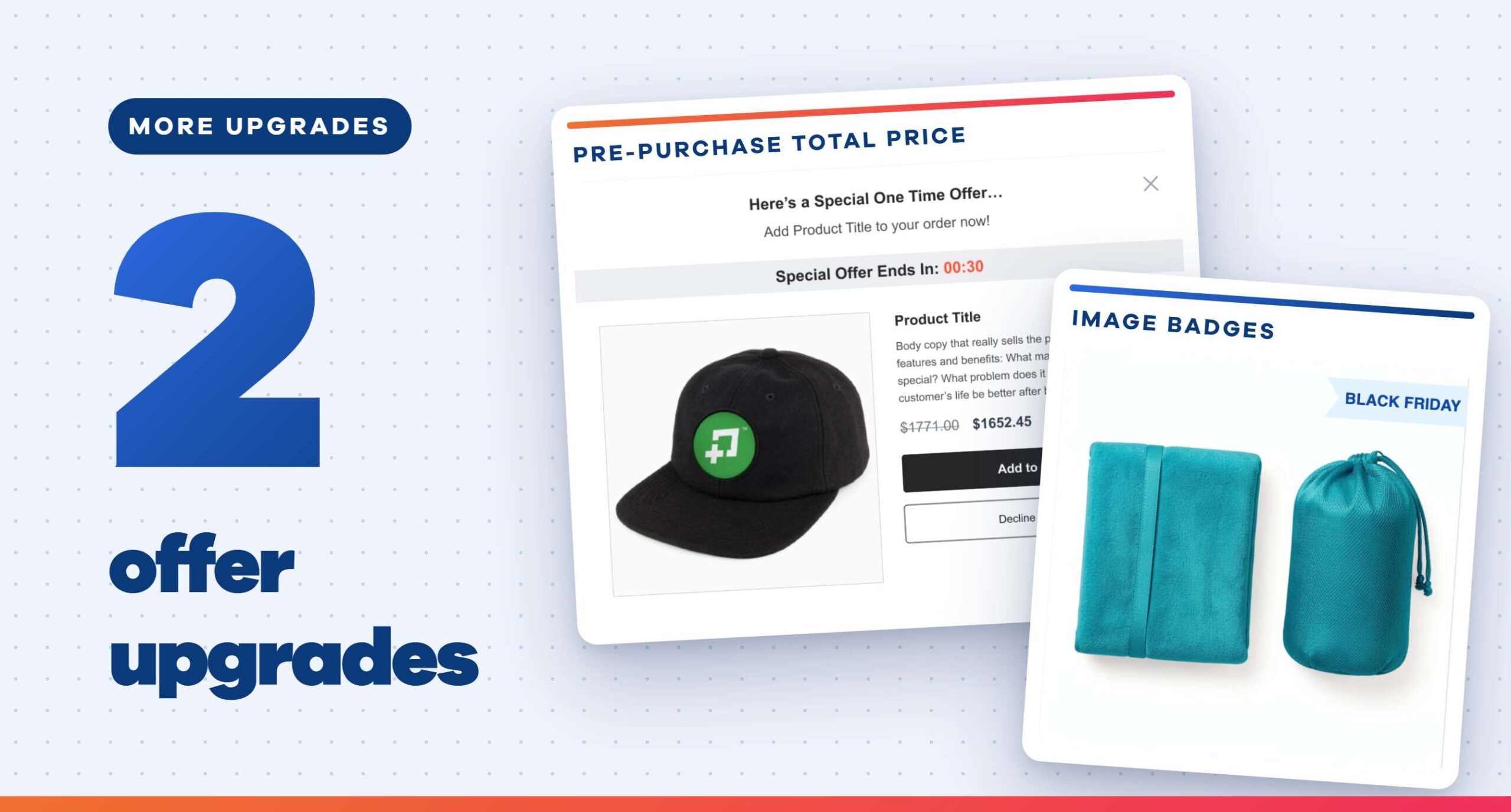
Pre-Purchase Price Display lets you show the total price for offers with a predefined quantity, like $60.00 for 3 units at $20.00 each. This way, the popup matches what customers see in their cart. New offers use Total price by default. To update an existing offer, open it and switch the new Price Display setting to Total price.
Post-Purchase Image Badges
Post-Purchase Image Badges now work on your Shopify product images, not just custom images. You can call out a discount or sale name like “20% OFF” or “Summer Sale” right on your product image. The badge appears on the first image only, including the first image in an Image Carousel.
🎉 Add a Little Confetti to Checkout Wins
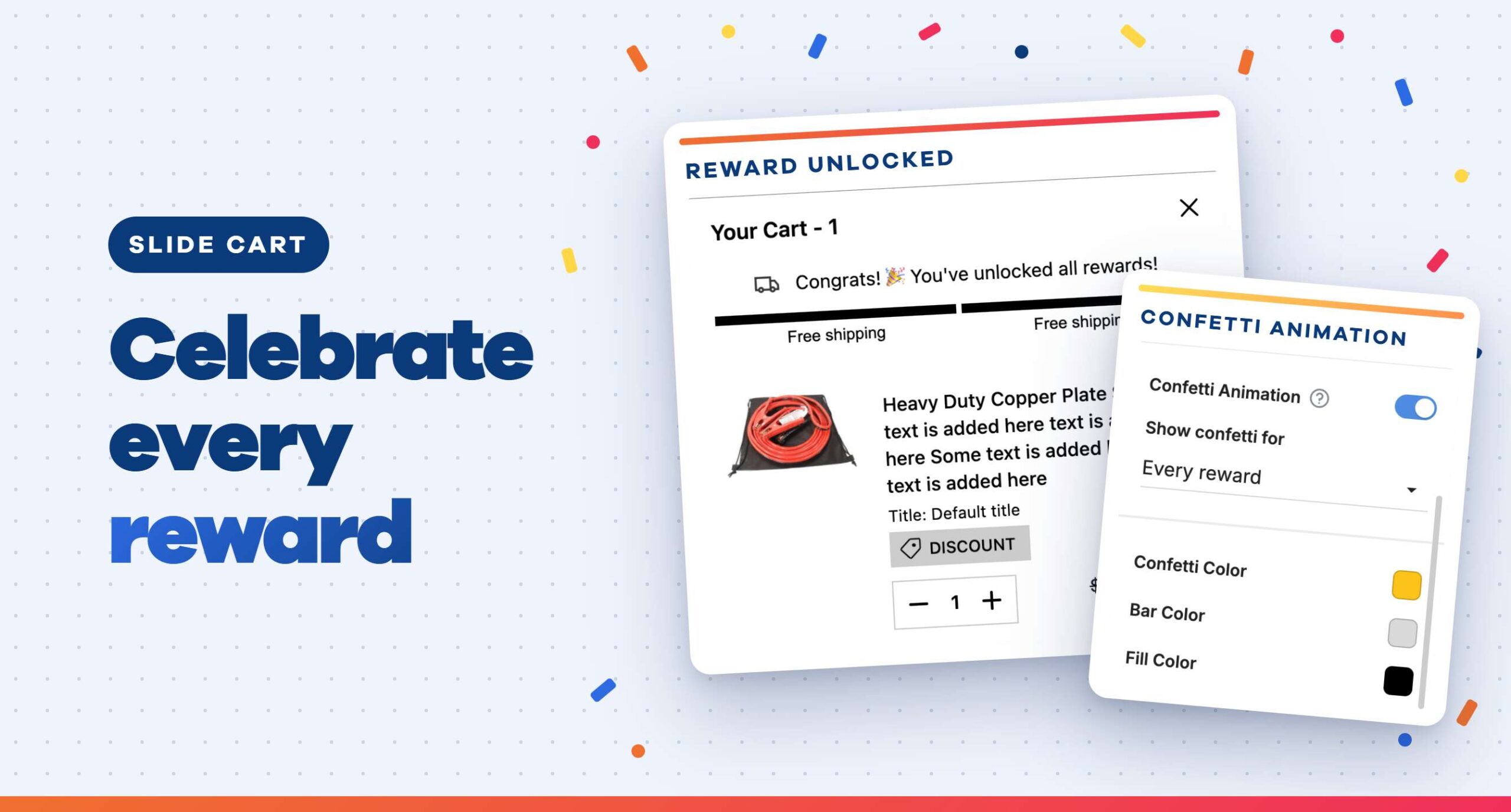
Unlocking a reward should feel like a win. Now when a shopper reaches a reward in your Slide Cart, a quick burst of confetti celebrates with them. To turn it on, open the Reward Bar section of your cart builder and switch on Confetti Animation. You can even match the color to your brand or your BFCM promo.
More Ways to Grow Every Month
Every one of these features is available in your account today. Log into OneClickUpsell to explore everything that’s new.
Not using OCU yet? Start your 30-day free trial today and unlock more revenue from the traffic you already have.
Thanks for reading. See you in the next update!